Library Template
The ConnectSoft Library Template provides a ready-to-use solution for creating .NET Core libraries that adhere to best practices for reusable components and packages. The template ensures consistency, maintainability, and ease of publishing for library projects.
Introduction
Purpose
The library template is designed for developers who want to create high-quality, reusable .NET libraries with minimal setup. It includes a structured solution, pre-configured settings, integrated tools, and pipelines for seamless development, testing, and publishing.
The template provides a production-ready foundation for building .NET libraries that can be shared across projects, published as NuGet packages, and integrated into larger solutions. It follows Microsoft's .NET library design guidelines and incorporates best practices for maintainability, testability, and observability.
When to Use This Template
- Creating reusable utility libraries for cross-project use
- Building domain model libraries for shared business logic
- Developing API client libraries for external service integration
- Creating infrastructure libraries with cross-cutting concerns (DI, logging, configuration)
- Building libraries that need to support .NET 8, 9, and 10 from one package (
TargetFrameworks) - Publishing libraries as NuGet packages with CI/CD automation
The ConnectSoft.LibraryTemplate repository includes Graphify knowledge graphs for AI-assisted navigation. After changing template source, run python -m graphify update . from the repo root.
Prerequisites
- .NET SDK 8.0 or later (required)
- .NET SDK 9.0 (recommended for multi-targeting support)
- Visual Studio 2022 (v17.14+ for .slnx support) or JetBrains Rider
- Azure DevOps account (for CI/CD pipeline integration, optional)
- Python 3.x with pip (for MkDocs documentation, optional)
Template Scope
Generated Solution Structure
The template generates a complete solution with the following structure:
YourLibraryName/
├── src/
│   └── YourLibraryName/
│       ├── YourLibraryName.csproj
│       ├── Options/              (if UseOptions=true)
│       ├── Metrics/                (if UseMetrics=true)
│       ├── Diagnostics/            (if UseActivitySource=true)
│       └── Samples/                (TracingDemo.cs if UseActivitySource=true)
├── tests/
│   └── YourLibraryName.UnitTests/
│       ├── YourLibraryName.UnitTests.csproj
│       ├── Metrics/                (if UseMetrics=true)
│       └── Diagnostics/            (if UseActivitySource=true)
├── docs/                           (MkDocs documentation structure)
├── YourLibraryName.slnx           (Modern solution format)
├── YourLibraryName.sln            (Legacy solution format, fallback)
├── Directory.Build.props           (Shared build properties)
├── Directory.Packages.props        (Central Package Management)
├── azure-pipelines.yml            (CI/CD pipeline)
├── README.md                       (Templated documentation)
├── .gitignore                      (Git ignore rules)
└── nuget.config                    (NuGet feed configuration)
Generated Projects
-
Library Project: Main project containing your library code
- Multi-targeting:
net8.0,net9.0, andnet10.0 - XML documentation generation enabled
- Static code analyzers configured
- Conditional feature folders based on template parameters
- Multi-targeting:
-
Unit Test Project: MSTest-based test project
- Code coverage collection configured
- Conditional test projects for optional features
- Project reference to library project
Key Features
Well-Structured Solution
- Project Setup:
- Includes a primary library project and a separate unit test project using MSTest.
- Templated README.md:
- Provides a ready-to-edit documentation file for the library.
- Modern Solution Format:
- Uses
.slnx(XML-based) format for improved performance (48% faster builds) - Includes legacy
.slnformat as fallback for older tooling
- Uses
Integrated CI/CD Pipeline
- Pre-Built CI Pipeline:
- Automatically builds, tests (with code coverage), and publishes NuGet packages to an artifact repository for reuse in the ConnectSoft Framework.
- Git Integration:
- Includes
.gitignoreand code analysis settings.
- Includes
- Artifacts Management:
- Ensures all outputs, including NuGet packages, are available for framework reuse.
Best Practices
- Preconfigured Settings:
- Adheres to .NET library design and coding guidelines.
- NuSpec Integration:
- Simplifies NuGet packaging with proper metadata for library distribution.
Cross-Cutting Features Support
- Optional Dependency Injection (DI):
- Built-in support for
IServiceCollectionandMicrosoft.Extensions.DependencyInjection - Enables service registration patterns and extension methods
- Default:
true(enabled)
- Built-in support for
- Optional Structured Logging:
- Built-in support for
ILogger<T>andMicrosoft.Extensions.Logging - Structured logging patterns and correlation support
- Default:
true(enabled)
- Built-in support for
- Optional Options Pattern:
- Built-in support for
IOptions<T>with configuration binding - DataAnnotations validation and source-generated validators
- Default:
true(enabled)
- Built-in support for
- Optional Metrics Support:
- Built-in support for OpenTelemetry-compatible metrics
- Custom metrics implementation with
IMeterFactory - Default:
true(enabled)
- Optional ActivitySource Tracing:
- Built-in support for distributed tracing with
ActivitySource - OpenTelemetry integration and log correlation
- Default:
false(disabled)
- Built-in support for distributed tracing with
Multi-Targeting Support
The template multi-targets .NET 8, .NET 9, and .NET 10 via TargetFrameworks in the .csproj:
The Framework template parameter (default net10.0) is a primary moniker for CLI/IDE; it does not remove TFMs. See Parameters.
Multi-Environment Support
- CLI and Visual Studio:
- Supports command-line interface (CLI) and Visual Studio IDE for template instantiation and usage.
Template Usage
Command-Line Interface (CLI)
The template is accessible through the .NET CLI, allowing developers to quickly scaffold a new library solution.
CLI help
Run dotnet new connectsoft-library -h. Template options use kebab-case in dotnetcli.host.json (for example --use-di, --build-definition-number, --framework). Exact help text may vary by SDK version.
Examples
dotnet new connectsoft-library --name ConnectSoft.Extensions.OpenTelemetry --build-definition-number 46
dotnet new connectsoft-library --name ConnectSoft.Extensions.DomainModel.RulesEngine --build-definition-number 46
dotnet new connectsoft-library --name ConnectSoft.Extensions.LoggingSupport --use-di --use-logging --use-options --use-tracing
Visual Studio
The template is available in Visual Studio, providing an intuitive IDE-based workflow for creating new libraries. Follow these steps to create a new library using the ConnectSoft Library Template:
How to Create a New Library in Visual Studio
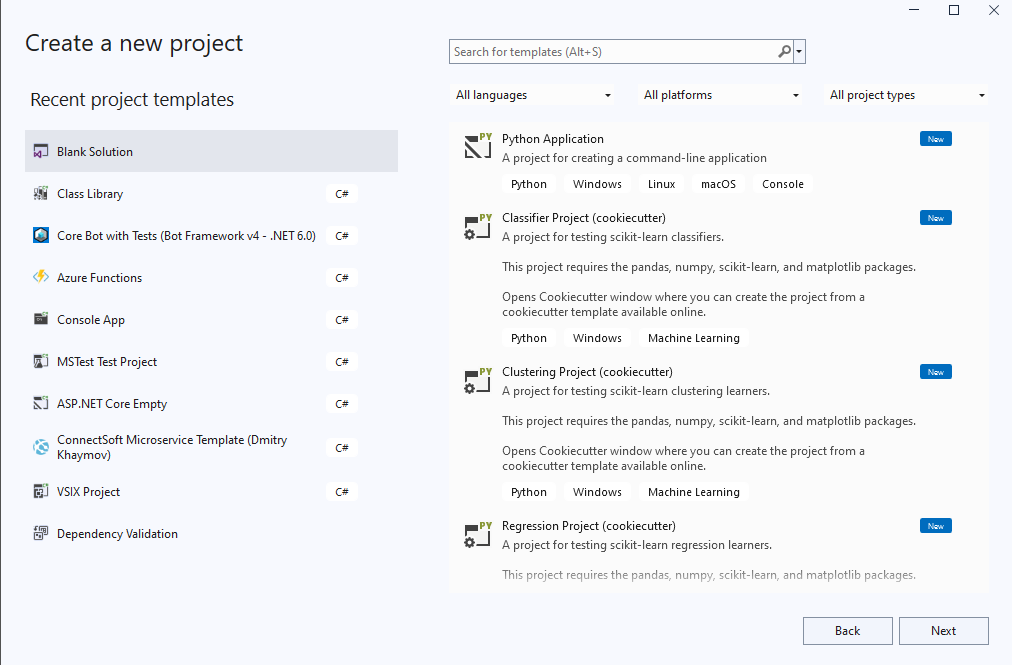
- Open Visual Studio:
- Launch Visual Studio and select Create a new project from the home screen.
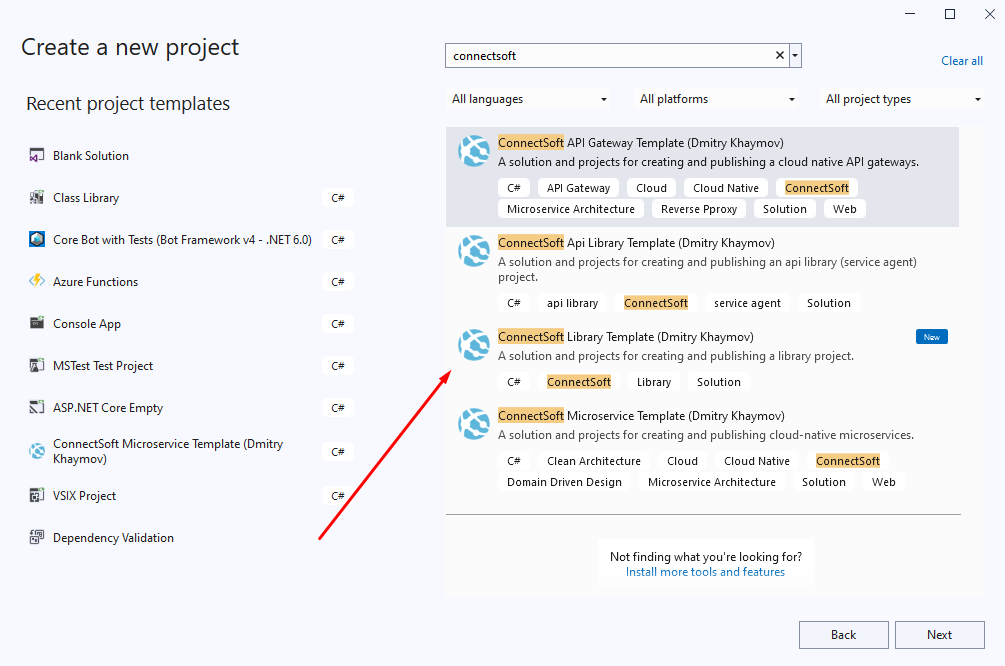
- Find the ConnectSoft Library Template:
- In the Create a new project dialog:
- Use the search bar to find the ConnectSoft Library Template.
- Filter by C# and Solution Templates if needed.
- In the Create a new project dialog:
-
Select the Library Template:
- Click on the ConnectSoft Library Template from the results.
- Click Next to proceed.
-
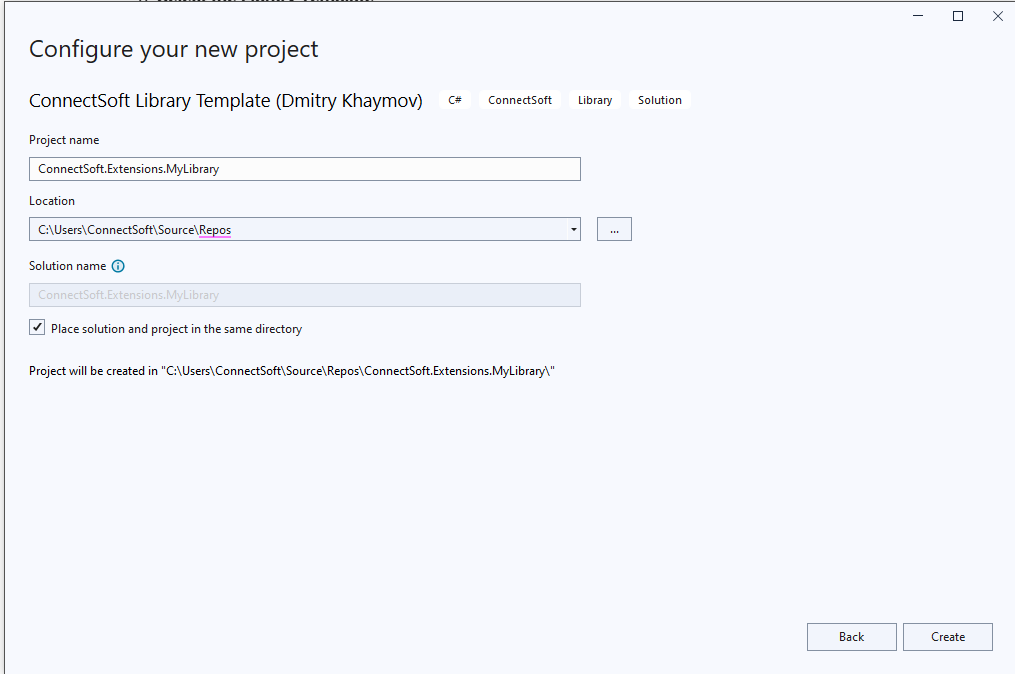
Provide Parameters:
- In the Configure your new project dialog:
- Enter the project name (e.g.,
ConnectSoft.Extensions.MyLibrary). - Specify the location where the solution should be created.
- Provide any additional parameters, such as the build definition number if applicable.
- Enter the project name (e.g.,
- In the Configure your new project dialog:
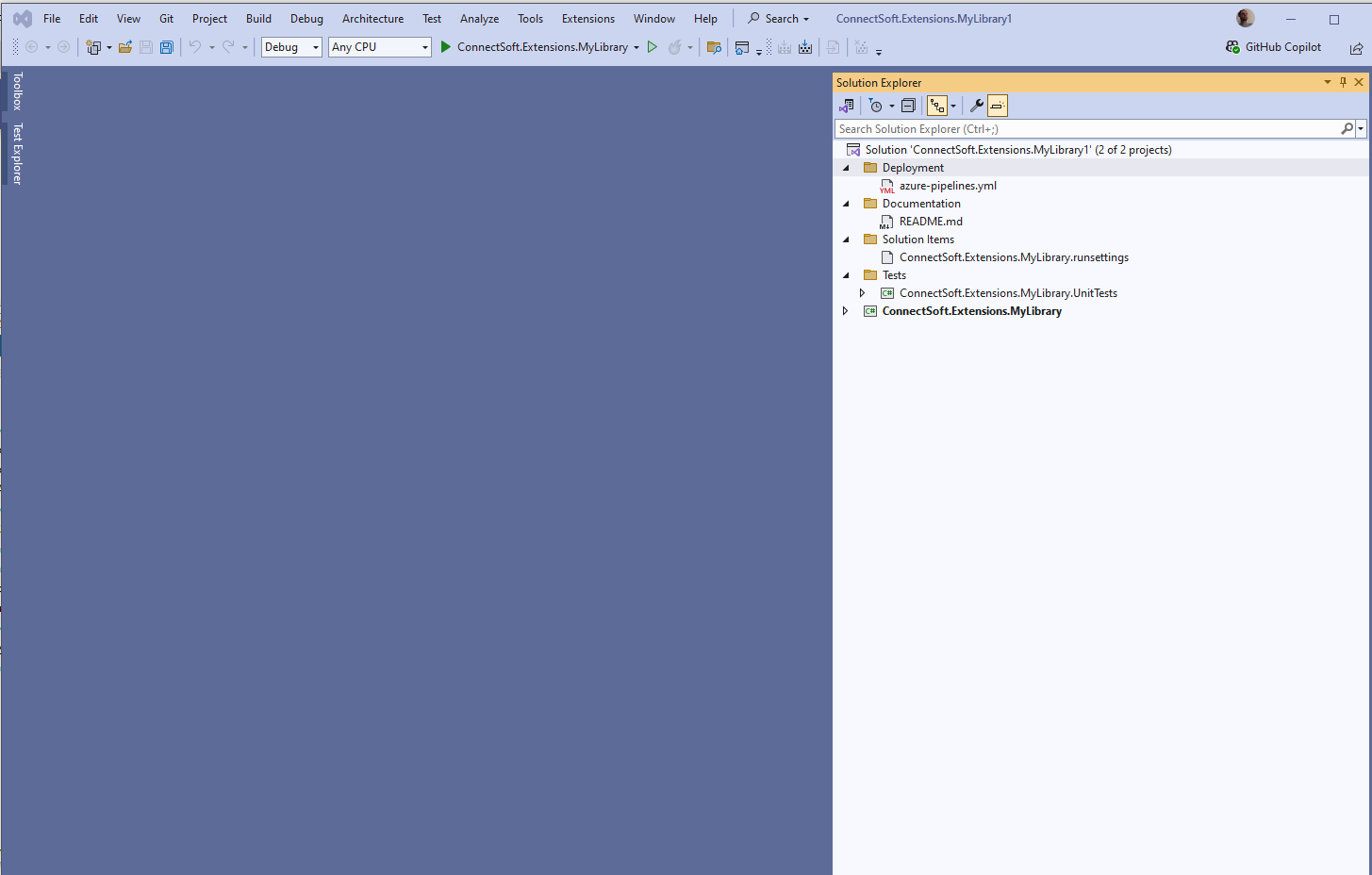
- Start Development:
- Click Create to generate the solution.
- The solution will include:
- A library project.
- A unit test project (MSTest).
- A pre-configured README.md.
- CI/CD pipeline scripts for Azure Pipelines.
Features of the Generated Solution
- Library Project:
- Preconfigured for creating reusable components.
- Test Project:
- Includes MSTest setup for unit testing.
- Documentation:
- Templated README.md for library documentation.
- CI/CD Integration:
- Ready-to-use YAML templates for build, test, and NuGet publishing.
Artifacts Publishing
- Ensures the NuGet package and associated artifacts are pushed to a central repository for reusability within the ConnectSoft Framework and other projects.
Quick Start
Step 1: Install the Template
The template is available from Azure DevOps Artifacts. Ensure your NuGet feed is configured in nuget.config.
Step 2: Create a New Library
Step 3: Customize Parameters (Optional)
# With all optional features enabled
dotnet new connectsoft-library --name MyLibrary --use-di --use-logging --use-options --use-metrics --use-tracing

# Minimal library without optional features
dotnet new connectsoft-library --name MyLibrary --use-di false --use-logging false --use-options false --use-metrics false
Step 4: Build and Test
Step 5: Review Generated Code
- Check
src/YourLibraryName/for the main library project - Review
tests/YourLibraryName.UnitTests/for test examples - Customize
README.mdwith your library description
Architecture Overview
Design Principles
- Clean Architecture: Separation of concerns with clear boundaries
- Domain-Driven Design: Focus on domain logic and business rules
- Dependency Injection: Loose coupling and testability
- Configuration Pattern: Strongly-typed configuration with validation
- Observability First: Built-in support for logging, metrics, and tracing
Project Organization
- Source Code: Organized in
src/folder with feature-based folders - Tests: Separate test project in
tests/folder - Documentation: MkDocs-based documentation in
docs/folder - CI/CD: Azure Pipelines YAML in root directory
Namespace Conventions
- Main namespace matches the library name (e.g.,
ConnectSoft.Extensions.MyLibrary) - Feature folders map to namespace segments (e.g.,
Options/→*.Optionsnamespace) - Test namespaces mirror source namespaces with
.UnitTestssuffix
For detailed architecture information, see the Architecture Guide.
Complete Parameter Reference
| Parameter | Type | Default | CLI (preferred) | Description |
|---|---|---|---|---|
buildDefinitionNumber |
string | "" |
--build-definition-number, -b, --bdn |
Azure DevOps build definition ID for badges/YAML |
Framework |
choice | net10.0 |
-f, --framework |
Primary moniker; project still multi-targets net8, 9, 10 |
UseDI |
bool | true |
--use-di, --di |
Dependency Injection |
UseLogging |
bool | true |
--use-logging, --logging |
Structured logging |
UseOptions |
bool | true |
--use-options, --options |
Options + validation |
UseMetrics |
bool | true |
--use-metrics, --metrics |
Metrics |
UseActivitySource |
bool | false |
--use-tracing, --traces |
Diagnostics + sample + tests |
For full explanations, FAQ, and CI vs template parameters, see the Parameters Guide.
Integration with ConnectSoft Framework
The library template seamlessly integrates into the ConnectSoft Framework, allowing developers to:
- Reuse the NuGet packages generated by the template across multiple projects.
- Leverage the pre-configured pipelines to maintain a consistent build, test, and publish process.
- Follow consistent patterns and conventions across all ConnectSoft libraries.
Next Steps
- Parameters Guide - Complete parameter reference and usage
- Generated Structure - Understanding what gets generated
- Features - Detailed feature documentation
- Architecture - Design principles and patterns
- Use Cases - Real-world examples and scenarios
- Configuration - Options pattern and configuration
- Metrics & Observability - Observability features
- Development Guide - Local development workflow
- Runbook - CI/CD operations and troubleshooting
References
- Best Practices:
- NuGet Package Publishing:
- Solution Format: